I was looking for a convenient way to save layers of text images to separate pdf files in the image processing sofware GIMP. Luckily, I found out that this could be done easily with Export Layers, a GIMP plug-in which is downloadable from here.
For a while I have been downloading old Myanmar related books in Myanmar or English language in pdf format from the Internet Archive. While I found these books to be “searchable”, they didn’t work well with searching for Myanmar language text. The obvious solution then will be to OCR the Myanmar language text and save the result (after correcting errors) to pdf format.
I have been trying out the Google Docs for applying OCR and found it quite dependable with pages extracted from old books in pdf format, or with images made with camera of my mobile phone. However, some pages in Myanmar language extracted directly from pdf files would not give editable text, or text at all with this method. I guess this might be due to the font used in producing the source document, because previously Myanmar language documents had been produced with a variety of non-Unicode propriety fonts. Obviously in such a situation, I could convert the pdf text into images and then apply OCR. This works!
I have been trying out the Google Docs for applying OCR and found it quite dependable with pages extracted from old books in pdf format, or with images made with camera of my mobile phone. However, some pages in Myanmar language extracted directly from pdf files would not give editable text, or text at all with this method. I guess this might be due to the font used in producing the source document, because previously Myanmar language documents had been produced with a variety of non-Unicode propriety fonts. Obviously in such a situation, I could convert the pdf text into images and then apply OCR. This works!
Here, I’m sharing my experience in trying to convert an official Myanmar language spelling book into searchable pdf format.
The Source
The source is the Myanmar language spelling book (မြန်မာစာလုံးပေါင်းသတ်ပုံကျမ်း), available for download here:.
The following shows the cover of the book and a sample page of the text:
The following shows the cover of the book and a sample page of the text:

This is chosen to show my fellow dummies the usefulness of a basic facility such as a “text search” in a pdf document. In Myanmar language dictionaries, or a spelling book, I always find it hard to get to the right text. Quite hard, because the alphabetical order consisted of a complex system of consonant, additional consonants and vowels. And here, I am not the only exception because in the front matter of the Abridged Myanmar Language Dictionary, the Myanmar Language Commission acknowledged it so!
For my exercise I’m confining my material to cover the spellings lists only, that is, from page-1 to 285 of the book.
Oringinal work flow
I am using only the open-source or free software.
- Extract pages 1-285 of the text (using PDFsam Basic software).
- Convert the resulting pdf file to jpg images (using PDFMate PDF Converter software).
- Convert resulting jpg images to pdf (using PDFMate PDF Converter software).
- Merge the resulting pdf files as single pdf file (using PDFsam Basic software).
- Open Google Drive; import the pdf file (29-MB); open in Google Docs. This converted the text-image to editable text. However, Google Docs would not process all of this information at one time and had to partition the input pdf file into three files.
Result
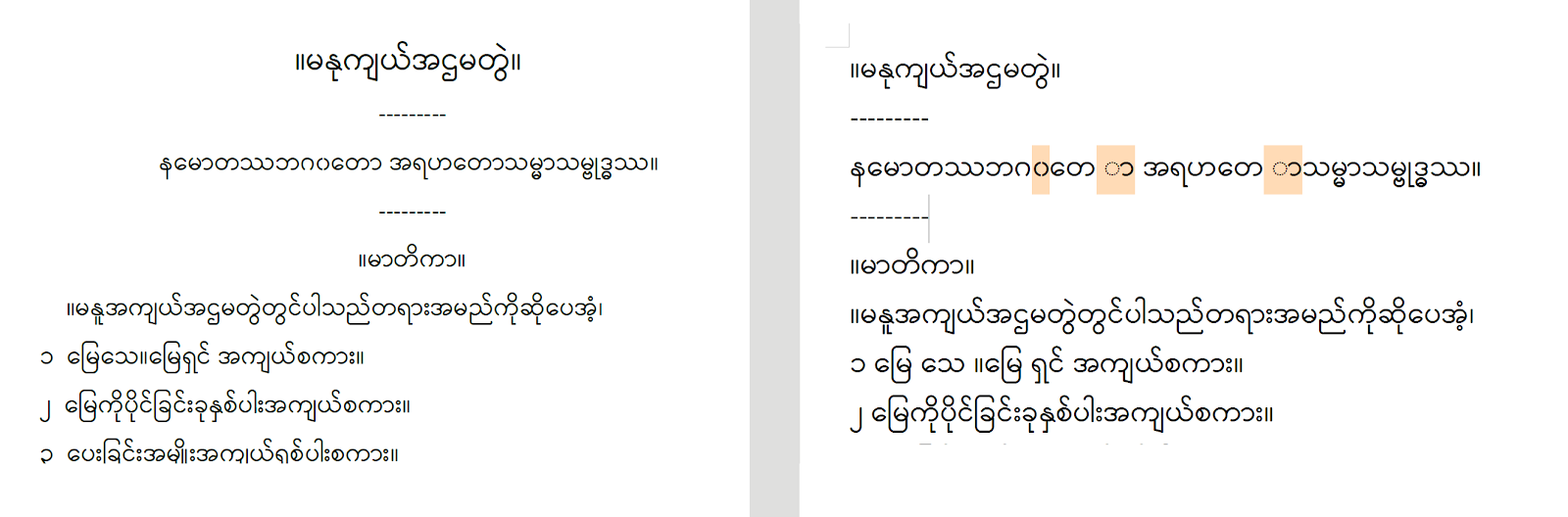
I had saved the Google Docs output as odt file. First two pages, opened in LibreOffice Writer are shown below. The OCR seems to be quite accurate and I’ve highlighted the single error on the first page. The format of the page is not very well preserved. But, as it is, it won’t distract you from searching text when scanning errors were corrected and the file has been converted to pdf format.

I tried reformatting one page to look like the original. Looks good, but too much work and I wouldn’t ever think of doing it for the whole file.

The next workflow
I knew how to import pdf files to graphic images layers in GIMP software, but couldn’t find how I could export each of them as a pdf file. Because of that I used PDFMate for converting pages of pdf file into graphic images. However, after a bit of Googling, I found that I could use Export Layers plug-in at the beginning of this post, I installed the plug-in and switched to this work-flow:
- As above.
- Open the resulting pdf file in GIMP using the Open as Layers… option in the File menu.Now I have all 285 pages of pdf opened as graphic layers.
- By installing the Export Layers plug-in for GIMP, I now have additional options in the File menu. I select the Export Layers option and export the layers as separate pdf files.
- As above.
- As above.
Except for being more convenient for me, this approach produce exactly the same result as with the original approach.
Improving (hopefully) the format of the final pdf
From my earlier experiments, I found that if the two column pdf pages could be converted into one column pages before we send them to Google Docs for OCR operation, the OCR process could be smoother. And output text, I guess, would be something like a one-column format and look much neater than it was previously. So, I tried looking for preprocessing of the pdf file or the odt file derived from it to find some easy way to reduce two columns text to one colum. How ever it seems like too hard to do, even if ways to do that exist at all.
Then I tried looking for using programming (macros) in GIMP to do that for imported graphics. I was about to learn macro programming, when by luck I found out that images could be cut using the Slice Using Guides option in the Image menu of GIMP! Also, it works with image layers!

Left and right slices are exported as pdf files, one for each layer.

Editing the OCR results and converting them finally into pdf file
Now proceeding with steps-4 and 5 as with the original work-flow I got the same kind of results, but now in single column. After completing OCR with Google Docs, I saved it to an odt file. The format, alas, is still messy!

My idea is to open that file in LibreOffice Writer. I could then make neccessary corrections by referring to the original Spelling Book. Then convert it to pdf in LibreOffice. After converting all pieces of the Spelling Book to pdf, I could merge them using PDFSam. Note that Google Docs would process only about 80 pages of my graphic-pdf input and I had to feed my spelling book pdf in parts.
Well, after all that work, you are going to get a real pdf file in which you can search text. However, I didn’t do this last part, because I found a much simpler work-flow I’d overlooked. And it produces a neater output without extra work!