Sunday, October 14, 2018

Shuffling into YouTube's comment space -II(3): Creating automatic-subtitles for a ripped DVD


 After my last post dealing with creating automatic subtitles for YouTube video, I was thinking about playing with sentiment analysis of the comments. But then, I happened to look up my post: “Surreal misquotes” of October 31, 2014 recalling that I had complained of the lack of transcriptions for Professor Hla Myint talk, back in 2012, on Myanmar's development efforts and pace, and potential solutions in the context of insufficient administrative capacity. Professor Myint's talk was the main theme of my post and I was trying to quote him which I managed to do by listening to the audio many times and at different speeds using the Audacity software. Now, six years later, I suddenly got this idea that it might be possible to automatically generate subtitles from the video file itself. And it sidetracked me into looking for some ways to do just that!

Before exploring that idea, someone more intelligent than me would have re-read the documentation to make sure that youtube-dl software that I would be using could indeed handle non-YouTube video files. Ignoring that issue, the plan seems clear: (i) rip Professor Myint's part of talk from the dvd, and (ii) process the resulting video file to create subtitles as in my last post. The following screen shot shows that it worked:


However, there were a few lessons my fellow dummies would benefit from.

Ripping Professor Myint's part of talk from the DVD

The VLC media player could do the ripping, but I know that it is slow and I understand that it would take as much time as the playback, which will be a little over 27 minutes for this job. So I looked for free software and found Winx DVD Ripper Free among a host of others. It was fast, and easy to use as the reviews said, but it is just a trial version and would only rip 5 minutes' duration of the DVD, as I found out too late! So I used handbrake and it was trouble-free. But it took 35 minutes which may even be slower than ripping with the VLC player, though I haven't verified that.


Processing the ripped video file with youtube-dl
  1. Making the file accessible to youtube-dl
For youtube-dl to access the ripped video file, the address of the video file need to be given in the URL form. So I opened it in my Chrome browser and took the address from the address bar. This gives the URL of file on the local system in this format: file:///filepath/filename. But when I tried to access this video file, I got this warning and can't go on:

WARNING: Could not send HEAD request to file:///C:/Users/MTNN/profMyint.mp4: <urlopen error file:// scheme is explicitly disabled in youtube-dl for security reasons>

Then I realized that I could use some cloud storage to overcome this problem. So I uploaded my video file to Dropbox and then youtube-dl has no problem reading that file.
  1. There aren't any subtitles
But when I tried to automatically generate subtitles from this file using “--write-auto-sub –embed-subs” the video is downloaded to my laptop, but there is this message: [ffmpeg] There aren't any subtitles to embed. That was because in the first place I naively thought that youtube-dl itself writes automatic-subtitles when there is none in a video file. Luckily, after some homework, I found out that, in fact, YouTube automatically generate subtitles for all videos uploaded to it. Now, my task is to upload my video to YouTube.

  1. Uploading video file to YouTube
The video file size that YouTube accepts by default is up to 15 minutes long. Mine was 27plus minutes so it was rejected. Luckily YouTube gives you the option to increase that limit by letting it verify your Google account and I had no trouble doing that.

  1. Accessing and processing this YouTube video file with youtube-dl
Since this video file is strictly for private use I gave its sharing option as private. However, when I run youtube-dl to access this file I got this message:
WARNING: Unable to extract video title
ERROR: This video is unavailable.
Lucky again! I found this solution from Dave Parrish in his post: HOW TO DOWNLOAD PRIVATE VIDEOS FROM YOUTUBE WITH YOUTUBE-DL. The problem, as he explained, was that youtube-dl couldn't handle YouTube's two factor authentication. The workaround is to create a cookie (newcookiefile.txt) following his example. I used the cookie so created to access my private video, and embed the automatically created subtitles like this:
d:\YT-DL\youtube-dl.exe --cookies=newcookiefile.txt –write-auto-sub –embed-subs https://youtu.be/Lxgpz2NGjus

Here you need to go through two intermediate steps. First, for the creation of the cookie file, you can use the EditThisCookie plugin for Chrome browser, which you can get from the chrome web store.
Next, the cookie you have created using it need to be converted to a format that youtube-dl could use by using the curl software. 


I downloaded it from here. Then you can follow the steps given by Dave Parrish. However, there is one problem with his syntax of using curl here:
      curl -b cookiefile.txt --cookie-jar newcookiefile.txt '/https://youtube.com'

The problem was with the quotes in the URL. I used plain https://www.youtube.com.

The final result


I found that the automatic speech to text conversion wasn't that perfect. For example it should be “administrative” instead of “atmospheric” in the screenshot above. In fact, I found lot more funny renderings than that in the entire video.

But you can see that it would be vastly easier for someone to correct the flawed subtitles than to start from scratch. Here, all you need to do is to ask youtube-dl to retain the subtitle text file (the file with vtt extension) in the process of embedding the subtitles (or ask it to create the subtitle file separately), and listen to the professors' speech hard and modify the text as required!

Credit: The talk was sponsored/DVD produced by UMFCCI and MIEGA, Myanmar.


Sunday, September 23, 2018

Shuffling into YouTube's comment space -II(2): Creating subtitles if there is none


After my success in downloading the video embedded with subtitles as described in my last post, I tried to do in exactly the same way for another YouTube video: Text Mining (part 3) - Sentiment Analysis and Wordcloud in R (single document). The video was from the Jayalar Academy and it motivated me to find a video downloader capable of embedding subtitles in the first place.

Here goes:

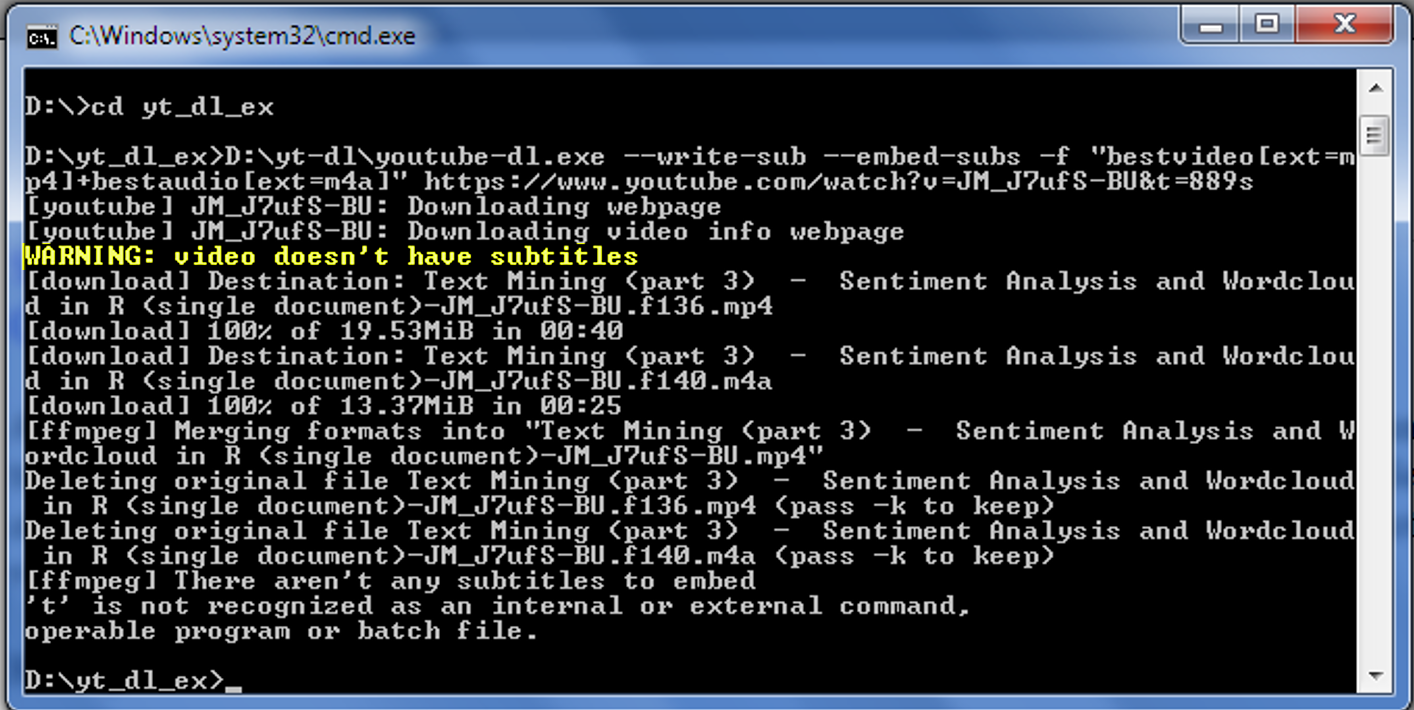
D:\yt-dl\youtube-dl.exe --write-sub --embed-subs -f "bestvideo[ext=mp4]+bestaudio[ext=m4a]" https://www.youtube.com/watch?v=JM_J7ufS-BU&t=889s


That video doesn't have subtitles? I'd watched it played with subtitles on the YouTube page and so I checked with the R tuber package to see if there is any caption. Sure enough there is none! So there is some way for the video author to prevent others from downloading the original captions, I guess. Anyway, I tried using --write-auto-sub instead of --write-sub and it works.


Playing the downloaded video with VLC media player, you can see it works:


What happened, I guess, was that youtube-dl created the subtitles itself. The command
--write-auto-sub created a subtitle file with extension vtt, and --embed-subs put the subtitles into the video.

Actually, I didn't hit the right set of commands as effortlessly as they appeared in this post and the last. Two false leads were notable. Instead of the full command-line,
D:\yt-dl\youtube-dl.exe --write-auto-sub --embed-subs -f "bestvideo[ext=mp4]+bestaudio[ext=m4a]" https://www.youtube.com/watch?v=JM_J7ufS-BU&t=889s

(1) omitting –write-auto-sub (or if the video has subtitles, --write-subThe video is downloaded, but no subtitle file is produced and the result is the message: [ffmpeg] There aren't any subtitles to embed

    (2) omitting -f "bestvideo[ext=mp4]+bestaudio[ext=m4a]"
    Produces a different video file format than mp4.

The webm file produced could be opened with the Internet Explorer which shows the “cc” button for displaying subtitles. But the output is garbled:


Opening with VLC player gives the same kind of result. On the other hand, the webm video format is described as newer than the mp4 format. Yet for now, using youtube-dl, I'll stick to the mp4 format by specifying as: -f "bestvideo[ext=mp4]+bestaudio[ext=m4a]". I hit this solution through the WARNING: Requested formats are incompatible for merge and will be merged into mkv message I got when I run: 
d:\yt-dl\youtube-dl.exe --embed-subs https://www.youtube.com/watch?v=e8QY0NDWqzk

Luckily I found the reason for that warning and the solution for it from the ffmpeg mailing list here:
"Most probably, youtube-dl defaulted to "bestvideo+bestaudio". That
could result in webm video and m4a audio. youtube-dl cannot merge webm
into mp4, therefore chooses mkv. That's all.

Actually, I think youtube-dl's warning message is confusing or wrong (I
can post a bug ticket): It says it "cannot merge", therefore it merges?
I believe it means "cannot merge to (default format) MP4, therefore
choosing MKV".
...
BTW, to force a "pure" MPEG video, use:
$ youtube-dl -f "bestvideo[ext=mp4]+bestaudio[ext=m4a]"
(when actually downloading from YouTube and not one of the other 5000
sites the tool supports)."

Wednesday, September 19, 2018

Shuffling into YouTube's comment space -II: Quest for a video downloader capable of embedding subtitles


Now that I could get comments and captions from YouTube videos at will if they exist, I may as well play with some text analysis tools. The easiest one at hand is the wordcloud. How about sentiment analysis of comments? I've seen some examples of how to do it. Still, I need to learn more. Looking around on YouTube I found the Jayalar Academy channel and particularly its Machine Learning, Data Mining, Statistics with R topic. It looks good, and there is the video: Text Mining (part 3) - Sentiment Analysis and Wordcloud in R (single document). Now I need to download it with the subtitles intact and I thought that would be a piece-of-cake with so many freeware and open source applications around. Well, sort of!

Previously, I have used free software such as the Freemake Video Downloader and later YTD video downloader. They were fine, but I only recently noticed that they can't give a video together with the subtitles. Only recently was I aware of the YouTube videos' capability to display subtitles if they exist! So much for my YouTube experience!

Continuing with my quest for a video downloader capable of embedding subtitles, I found the 4K downloader. WikiHow stamped it as community tested and went on to instruct how to install and use it. I was impressed and immediately sent an email to my friend about this discovery.


Happily I went to their site and downloaded the (only one) installer listed there. Only after much fumbling and failing to get the embedded subtitles I found out that 4K Video Downloader needs a paid upgrade for getting that feature and other improvements. So, there's no one to blame, except myself for looking always for a free lunch.

Next, some reviews on the best YouTube downloaders sent me to try out a few online downloaders thinking vainly that they would give videos with embedded subtitles. I could get subtitle-only files; easy, free and fast, but that's not what I want. Finally I found youtube-dl.


The words, “youtube-dl is a command-line program to download videos from YouTube.com and a few more sites.” may unjustifiably frighten a senior citizen, like me, or a non-programmer. In my case, I started using PCs at the age of DOS, that predates Windows. Yet I can remember just a few commands like “dir”, “cd”, and “mkdir”. Yet, to download a video with youtube-dl is extremely simple and very fast:


The picture above shows that, in the Command Prompt window, when I run the command:
d:\yt-dl\youtube-dl.exe https://www.youtube.com/watch?v=e8QY0NDWqzk
the mp4 video file is created in my d:\yt_dl_ex directory. It is as simple as that and is much faster than with video downloaders I had used before. However, you will not get a video that includes subtitles this way. That will come later. For now, for the benefit of my fellow dummies, I will explain how I got this far.

Download, install, prepare
      1. Download youtube-dl program for Windows (youtube-dl.exe) from here.
      2. Create the D:\YT-DL folder and put youtube-dl.exe there.
      3. Create the D:\yt_dl_ex folder to place the program outputs.
Open Command Prompt
      1. Click Start and type cmd in the Search programs and files box and press Enter.
Run the program at Command Prompt
      1. At the Command Prompt type d: and press Enter.
      2. Next type cd yt_dl_ex and press Enter. Now my working directory is d:\yt_dl_ex.
      3. Now type d:\yt-dl\youtube-dl.exe https://www.youtube.com/watch?v=e8QY0NDWqzk and press enter to get the video file. You'll recall that this is the same video that I wrote about in my last post.

For my main task to get subtitles embedded in a video, I've to look for the solution in GitHub, superuser, ffmpeg-user mailing list, and other places plus a lot of silly mistakes, and trial and errors. Finally I got it done using the command:

d:\yt-dl\youtube-dl.exe --write-sub --embed-subs -f "bestvideo[ext=mp4]+bestaudio[ext=m4a]" https://www.youtube.com/watch?v=e8QY0NDWqzk


However, you need to have the ffmpeg software installed on your computer to be able to embed the subtitles. You should read the wikiHow article on how to download and install ffmpeg on Windows here. The GitHub article on installing ffmpeg is here. If ffmpeg is correctly installed you should have no trouble getting the above results. Happy downloading YouTube videos!

However, that was not THE END! If you were as dumb as I am, you would go to the freshly downloaded video (with subtitles) and double-clicked on it and got puzzled by the outcome. You would watch your video on the Windows Media Player screen and wonder where the subtitles are hiding. You would try tweaking the Players setting, and no luck. You would again check the message from the youtube-dl run that reads:

[ffmpeg] Embedding subtitles in 'The Most Successful People Explain Why a Colleg
e Degree is USELESS-e8QY0NDWqzk.mp4'

Finally I suspected that the problem might be due to Windows Media Player not being able to play video with such embedded subtitles. So I installed the latest version of VLC player from here. And success!


Monday, September 10, 2018

Shuffling into YouTube's comment space


Just three or four months back it was as if I couldn't do much more than to peer hard over the railings of YouTube to get some idea of what's in there.

Then a young friend of mine told me about an internet service provider near my place. So I hooked up with their services for an unlimited internet access at some reasonable price and suddenly I was IN! Before, I was happy enough to get a taste of good things in YouTube like Myanmar oldies, educational materials, DIY clips, political debates, and sensational news through my cellphone. But that was expensive. Now I would keep on enjoying such familiar topics for hours on end or just click-away in abandon.

Since the day I had read about the sweetness of the song of this exotic little bird called a nightingale, one of my schoolboy-fantasies was to listen to its songs in the cool of a shady and beautiful garden somewhere beyond the sea. When the Internet age arrived, I was lucky enough to have unlimited access due to my humble employment in a regional institution. Nevertheless, I was reluctant to lookup for the nightingale and its song. May be I was scared that my untutored ears won't receive its songs well. Driven perhaps by my broadband access, this has changed. Now I am enjoying an hour's worth or more of the nightingale song. Not only that, I would look for Yanni's nightingale song performed in his Tribute concert at the Taj Mahal and the Forbidden City. Then I would go on to discover Deborah Henson-Conant singing and playing her "Nightingale" song on the harp, as well as a great many of the covers. And I wont miss watching the recital of Keat's Ode to a Nightingale poem as well, and an animation of Andersen's Nightingale fairy tale no less.

But then, I couldn't help looking for a recording of the song of our little bird we call သပိတ်လွယ် (Oriental magpie-robin). For me, its song seems mellower and sweeter than a nightingale's. My apologies if it sounds like the words of some well-known western horticulturist or botanist that I had read a long time ago. He said that he won't care for all the cherimoyas of Peru and for him a firm apple or two would be fine!

Whether it is YouTube's purely enjoyable content or its more serious ones, most of the video pages carry informative, interesting, or thought-provoking comments. I guess they would be most valuable for serious YouTubers. Since the day I discovered the magic of natural language processing via R, I've been itching to try my hands at analyzing the infamous comments in our own Myanmar language on Facebook. But the NLP software, as I know, are presently based on English and English like languages where word is the element for the communication of meaning. Unfortunately our language has no equivalence for this. So, being an old-timer, I have no better alternative than to wander into YouTube's English-only comment space (at a shuffling pace). Bear with me because I am in a sort of alone in the wilderness situation with R as the only equipment in my survival kit.

Looking for an interesting YouTube video to start with, I enjoyed discovering the whole series of Senate Hearings of April 2018 (lasting more than five hours) of Mark Zukerberg, the Facebook boss. They were tremendously entertaining even if I couldn't understand their true significance. The exchanges between the Senators, Congressman/woman and Zukerberg were really exciting and there were a lot of intelligent (I guess) comments on these exchanges. However I am not going to touch them here because I dare not mess with the Myanmar Facebook community. Even so, I couldn't help noticing one particular video page with the title How does Facebook define hate speech? Zuckerberg dodges question. Its content would be highly informative, appropriate and timely for us and  it is unlikely to provoke suspicion or anger from our folks. Unfortunately, this page didn't allow any comments!

Meanwhile, I was feeling uneasy about the downhearted bunch of young people from the entire batch of fresh high-school graduates of this year. As usual, majority of the graduates would not make the grade for medical or engineering college, or information technology studies, or for business and management studies, and other popular schools. And most of these young people as well as their parents look like they are feeling lost and hopeless. May be Andersen's Ugly Duckling is just the right fairy tale to comfort them. Though this direct pep talk video (The Most Successful People Explain Why a College Degree is USELESS) at https://www.youtube.com/watch?v=e8QY0NDWqzk might be more appealing to the young people and their parents.

knitr::include_graphics("degreeUseless.jpg")
plot of chunk unnamed-chunk-1
Here I am sharing my experience of playing with data from this YouTube video available through the YouTube API. For that I am using the “tuber” package of R. This post shows how I got comments, captions (or subtitles or transcripts) and downloaded the thumbnail of the video.

I am leaving out the usual step of installing an R package (here, tuber). You'll also need to obtain from Google an authorization known as “oauth” to use data from YouTube videos.You should read about it at the appropriate Google website.

#  Get comments, captions, and thumbnail from a youtube video using the tuber package
## myint thann, Sept 09, 2018
library(tuber)
yt_oauth()
When you followed Google's instructions to obtain the oauth, you'll get your “client id” and “client secret”. For the first time you run yt_oauth like this:
yt_oauth(“client id”, “client secret”, token = “”)
and R will respond with:
Use a local file ('.httr-oauth'), to cache OAuth access credentials between R sessions?
1: Yes 2: No
If you choose yes, when you run yt_oauth at next session, you only need to use
yt_oauth().
Now we'll ask for some general information about our video. You get the id of the video from the url of the video page and it is the characters following “v= ” from https://www.youtube.com/watch?v=e8QY0NDWqzk for example.
get_stats(video_id="e8QY0NDWqzk")
## $id
## [1] "e8QY0NDWqzk"
## 
## $viewCount
## [1] "3467753"
## 
## $likeCount
## [1] "66742"
## 
## $dislikeCount
## [1] "3982"
## 
## $favoriteCount
## [1] "0"
## 
## $commentCount
## [1] "8342"
Download the video thumbnail
To get the video thumbnail we need to get its URL from the list returned by the request for video details. Here we take the high quality (640x480 pixels) thumbnail image.
x <- get_video_details(video_id = "e8QY0NDWqzk")
thq <- x[[4]][[1]][[4]][[5]][[3]][[1]]
We download the image to our working directory.
download.file(thq, destfile="DegreeUseless.jpg", mode="wb")
Get the video caption
A YouTube video has two caption tracks: ASR - A caption track generated using automatic speech recognition; standard - A regular caption track.To retrieve the caption we need to get the id of the desired track and then use it to get the caption.
cctrack <- list_caption_tracks(part = "snippet", video_id = "e8QY0NDWqzk")
# get captions from the Standard track
cc.2 <- get_captions(id = cctrack$id[2])
The caption is received as a raw data stream. It is converted to text output and saved to text file with:
cat(rawToChar(cc.2), file = "caption.txt")
If you omit the file parameter, all the captions will be displayed on the console. To show just a few lines of comment I wrote it to a text file and then read it back, and ask to show 5 time-slice/caption on the console:
print(scan(file = "caption.txt", what = character(),sep = "\n", nlines = 14,  
           blank.lines.skip = FALSE), quote = FALSE )
##  [1] 0:00:07.510,0:00:08.590                                                    
##  [2] Well, often times                                                          
##  [3]                                                                            
##  [4] 0:00:08.590,0:00:10.980                                                    
##  [5] Business Education today, and I see it all the time                        
##  [6]                                                                            
##  [7] 0:00:10.980,0:00:13.164                                                    
##  [8] Kids come out of college, the best colleges                                
##  [9]                                                                            
## [10] 0:00:13.200,0:00:17.160                                                    
## [11] Wharton and Harvard and Stanford and some of the great business schools and
## [12]                                                                            
## [13] 0:00:17.160,0:00:20.000                                                    
## [14] they'll come out and they won't have practical experience.
Well, you can see on the video that they were the words of President Trump.

Get all comment threads on the video page
The get_comment_threads() function give a data.frame with the following 12 columns:
“authorDisplayName”, “authorProfileImageUrl”, “authorChannelUrl”, “authorChannelId.value”, “videoId”,
“textDisplay”, “textOriginal”, “canRate” “viewerRating”, “likeCount”, “publishedAt”, “updatedAt”
cmmt <- get_comment_threads(c(video_id = "e8QY0NDWqzk"), max_results = 101)
nrow(cmmt)
## [1] 4000
Suppose we want to view the first 5 rows out of 4000 for authorDisplayName, publishedAt, and textOriginal, first we can extract a subset of the cmmt dataframe. Then format the text the way we want to see using paste() function.
cmmt5 <- cmmt[1:5, c(1,7,11)]
cmmt5.TMC <- paste('<< ', trimws(cmmt5$authorDisplayName),' >>', '[',  
                   cmmt5$publishedAt, '] ', trimws(cmmt5$textOriginal),
                   collapse = '\n\n')
Display the comments on the console using the cat() function.
cat(strwrap(cmmt5.TMC, width = 70), sep = '\n')
## << Motivation Madness >> [ 2017-10-12T16:40:51.000Z ] PLEASE READ -->
## Hi everyone, this is a completely different video than normal. Videos
## will resume back to normal on Monday with an EPIC video by Simon
## Sinek. I want to explain that College is a perfect solution to many,
## however to others it may not be a good fit. For myself, it was
## perfect, for one of my good friends, it wasn't a good fit. If you are
## currently in college, do not rely on that the piece of paper that you
## receive at the end to get you far, it is your own commitment and
## perseverance that will get you far. College is one of the best places
## on earth to develop networking connections with fellow students and
## professors, as well as create experiences that are extremely
## valuable. I want to emphasise that you don't need to go to the best
## and most expensive school to get the best education or be successful.
## My advice is to BECOME INVOLVED, make friends with as many people as
## possible, help others, and be true to yourself. I REPEAT, this is not
## a video saying that College is useless, but rather we put too much
## emphasis on a piece of paper, thinking that a degree is going to
## catapult us to great success. Make the most out of your time, go out
## there and make connections with other people, and take risks!
## 
## << Max Anguiano >> [ 2018-09-10T05:44:22.000Z ] According to ample
## research, most people with a college degree earn a higher income than
## those without one.
## 
## << HumbleWolf >> [ 2018-09-10T04:45:02.000Z ] The Reason Why You're
## Failing In All Aspect Of Life -
## https://www.youtube.com/watch?v=kPef2yhexAg
## 
## << fantamas06 >> [ 2018-09-10T04:17:13.000Z ] without a title of your
## education, no one will take you for a high tech /engineering job,
## even if you spend a lot of time educating self, and you know more
## than those, who completed colleges/ high-level schools.
## 
## << Justin Ajuogu >> [ 2018-09-10T00:37:08.000Z ] Well there's no harm
## in education, just do sum with it.

Wednesday, December 6, 2017

R Notebook version of my parallel coordinates plots

This is the R Markdown Notebook version of parallel coordinates plots displayed in my post “Playing with microdata”. When you execute code within the notebook, the results appear beneath the code.
For the following code to run, you need to have, (i) downloaded the stata data file “myanmarcs_fy14_datafile_with_dk.dta” from the World Bank site, (ii) after running the step (16) of the code in my previous post “Playing with microdata II: my first parallel coordinates plot”, you have saved the resulting data frame to “pcdf.RData”, and (iii) it exists in the directory for the R Notebook project in RStudio.
load("pcdf.RData")
str(pcdf)
## 'data.frame':    511 obs. of  10 variables:
##  $ row   : int  1 1 1 2 2 2 3 3 3 4 ...
##  $ row0  : int  1 1 1 2 2 2 3 3 3 4 ...
##  $ id    : int  101 101 101 102 102 102 103 103 103 104 ...
##  $ g1r   : Factor w/ 9 levels "Office of the President/ Prime Minster/ Minister",..: NA NA NA 5 5 5 1 1 1 5 ...
##  $ col   : num  18 19 20 7 13 20 7 8 0 7 ...
##  $ r1    : int  18 18 18 7 7 7 7 7 7 7 ...
##  $ r2    : int  19 19 19 13 13 13 8 8 8 13 ...
##  $ r3    : int  20 20 20 20 20 20 NA NA NA 20 ...
##  $ rid   : num  1 2 3 1 2 3 1 2 3 1 ...
##  $ sgcode: Factor w/ 9 levels "1","2","3","4",..: NA NA NA 5 5 5 1 1 1 5 ...
head(pcdf)
##   row row0  id                                            g1r col r1 r2 r3
## 1   1    1 101                                           <NA>  18 18 19 20
## 2   1    1 101                                           <NA>  19 18 19 20
## 3   1    1 101                                           <NA>  20 18 19 20
## 4   2    2 102 Private Sector/ Financial Sector/ Private Bank   7  7 13 20
## 5   2    2 102 Private Sector/ Financial Sector/ Private Bank  13  7 13 20
## 6   2    2 102 Private Sector/ Financial Sector/ Private Bank  20  7 13 20
##   rid sgcode
## 1   1   <NA>
## 2   2   <NA>
## 3   3   <NA>
## 4   1      5
## 5   2      5
## 6   3      5
In my post “Playing with microdata II: my first parallel coordinates plot”, the plot at the bottom of the post was created by running the following code chunk (Note that to get the desired size of plot we use something like “”{r fig.height=6, fig.width=6}“ for a given code chunk):
library(ggplot2)
## Warning: package 'ggplot2' was built under R version 3.3.3
y_levels <- levels(factor(1:35))
ggplot(pcdf, aes(x = rid, y = col, group = row)) +
geom_path(aes(size = NULL, color = sgcode),
alpha = 0.5,
lineend = 'round', linejoin = 'round')+
scale_y_discrete(limits = y_levels, expand = c(0.5, 0)) +
scale_size(breaks = NULL, range=c(1,7))
plot of chunk unnamed-chunk-3
Then I left it there for the reader to try to create plots like the one shown in the last part of my post - "Playing with microdata”.In fact this last graphic consisted of six separate plots which I didn't find an easy way to combine into one page using ggplot2. To dodge this issue I just combined them into a single graphic usig GIMP! I think this is fine for the time being, because my primary purpose is blogging. But for sharing my R code, I should learn to place multiple plots produced by ggplot2 on one page. One promising way here would be to use the multiplot function given in: http://www.cookbook-r.com/Graphs/Multiple_graphs_on_one_page_(ggplot2)/, and there maybe others.
The main idea for improving the above plot would be to select one stakeholder group and plot the lines in this group in one color infront of all other groups in another color. To do so (i) we create Y-axis label to represent codes for development priorities, (ii) we define the order of drawing two groups of lines, (iii) and for the readability of the plots create legends for the line colors with text wrapping, and (iv) add appropriate axis labels and headings.

Create Y-axis labels

# create data frame of response codes to use with ggplot
YL <- data.frame(A=as.character(rep("a2_",35)), n=as.character(seq(1,35,1)))
q <- paste(YL$A,YL$n,sep="")
YL$rcode <- factor(q,levels=q)
head(YL)
##     A n rcode
## 1 a2_ 1  a2_1
## 2 a2_ 2  a2_2
## 3 a2_ 3  a2_3
## 4 a2_ 4  a2_4
## 5 a2_ 5  a2_5
## 6 a2_ 6  a2_6

Create StakeHolder group names with text wrapping

pcdf$SGname <- gsub("/","/ \n",pcdf$g1r)
sgn <- gsub("/","/ \n", levels(pcdf$g1r))
pcdf$SGname <- factor(pcdf$SGname, levels= sgn)
head(pcdf$SGname)
## [1] <NA>                                                
## [2] <NA>                                                
## [3] <NA>                                                
## [4] Private Sector/ \n Financial Sector/ \n Private Bank
## [5] Private Sector/ \n Financial Sector/ \n Private Bank
## [6] Private Sector/ \n Financial Sector/ \n Private Bank
## 9 Levels: Office of the President/ \n Prime Minster/ \n Minister ...

Create new variables in which one stakeholder group name is preserved and other groups are collapsed into “All Others”

pcdf$SG_1 <- ifelse(as.integer(pcdf$g1r) == 1,
    levels(pcdf$SGname)[1], "All Others")
pcdf$SG_2 <- ifelse(as.integer(pcdf$g1r) == 2,
     levels(pcdf$SGname)[2], "All Others")
pcdf$SG_3 <- ifelse(as.integer(pcdf$g1r) == 3,
    levels(pcdf$SGname)[3],
    "All Others")
pcdf$SG_5 <- ifelse(as.integer(pcdf$g1r) == 5,
    levels(pcdf$SGname)[5],
    "All Others")
pcdf$SG_6 <- ifelse(as.integer(pcdf$g1r) == 6,
    levels(pcdf$SGname)[6], "All Others")
pcdf$SG_7 <- ifelse(as.integer(pcdf$g1r) == 7,
    levels(pcdf$SGname)[7], "All Others")
head(pcdf)
##   row row0  id                                            g1r col r1 r2 r3
## 1   1    1 101                                           <NA>  18 18 19 20
## 2   1    1 101                                           <NA>  19 18 19 20
## 3   1    1 101                                           <NA>  20 18 19 20
## 4   2    2 102 Private Sector/ Financial Sector/ Private Bank   7  7 13 20
## 5   2    2 102 Private Sector/ Financial Sector/ Private Bank  13  7 13 20
## 6   2    2 102 Private Sector/ Financial Sector/ Private Bank  20  7 13 20
##   rid sgcode                                               SGname
## 1   1   <NA>                                                 <NA>
## 2   2   <NA>                                                 <NA>
## 3   3   <NA>                                                 <NA>
## 4   1      5 Private Sector/ \n Financial Sector/ \n Private Bank
## 5   2      5 Private Sector/ \n Financial Sector/ \n Private Bank
## 6   3      5 Private Sector/ \n Financial Sector/ \n Private Bank
##         SG_1       SG_2       SG_3
## 1       <NA>       <NA>       <NA>
## 2       <NA>       <NA>       <NA>
## 3       <NA>       <NA>       <NA>
## 4 All Others All Others All Others
## 5 All Others All Others All Others
## 6 All Others All Others All Others
##                                                   SG_5       SG_6
## 1                                                 <NA>       <NA>
## 2                                                 <NA>       <NA>
## 3                                                 <NA>       <NA>
## 4 Private Sector/ \n Financial Sector/ \n Private Bank All Others
## 5 Private Sector/ \n Financial Sector/ \n Private Bank All Others
## 6 Private Sector/ \n Financial Sector/ \n Private Bank All Others
##         SG_7
## 1       <NA>
## 2       <NA>
## 3       <NA>
## 4 All Others
## 5 All Others
## 6 All Others
# convert to factors
pcdf[,12:17] <- lapply(pcdf[,12:17], as.factor)
# change levels of factors
pcdf[,12] <- relevel(pcdf[,12], ref=levels(pcdf[,12])[2])
pcdf[,13] <- relevel(pcdf[,13], ref=levels(pcdf[,13])[2])
pcdf[,14] <- relevel(pcdf[,14], ref=levels(pcdf[,14])[2])
pcdf[,15] <- relevel(pcdf[,15], ref=levels(pcdf[,15])[2])
pcdf[,16] <- relevel(pcdf[,16], ref=levels(pcdf[,16])[2])
pcdf[,17] <- relevel(pcdf[,17], ref=levels(pcdf[,17])[2])
str(pcdf)
## 'data.frame':    511 obs. of  17 variables:
##  $ row   : int  1 1 1 2 2 2 3 3 3 4 ...
##  $ row0  : int  1 1 1 2 2 2 3 3 3 4 ...
##  $ id    : int  101 101 101 102 102 102 103 103 103 104 ...
##  $ g1r   : Factor w/ 9 levels "Office of the President/ Prime Minster/ Minister",..: NA NA NA 5 5 5 1 1 1 5 ...
##  $ col   : num  18 19 20 7 13 20 7 8 0 7 ...
##  $ r1    : int  18 18 18 7 7 7 7 7 7 7 ...
##  $ r2    : int  19 19 19 13 13 13 8 8 8 13 ...
##  $ r3    : int  20 20 20 20 20 20 NA NA NA 20 ...
##  $ rid   : num  1 2 3 1 2 3 1 2 3 1 ...
##  $ sgcode: Factor w/ 9 levels "1","2","3","4",..: NA NA NA 5 5 5 1 1 1 5 ...
##  $ SGname: Factor w/ 9 levels "Office of the President/ \n Prime Minster/ \n Minister",..: NA NA NA 5 5 5 1 1 1 5 ...
##  $ SG_1  : Factor w/ 2 levels "Office of the President/ \n Prime Minster/ \n Minister",..: NA NA NA 2 2 2 1 1 1 2 ...
##  $ SG_2  : Factor w/ 2 levels "Office of Parliamentarian",..: NA NA NA 2 2 2 2 2 2 2 ...
##  $ SG_3  : Factor w/ 2 levels "Employee of a Ministry/ \n PMU/ \n Consultant on WBG project",..: NA NA NA 2 2 2 2 2 2 2 ...
##  $ SG_5  : Factor w/ 2 levels "Private Sector/ \n Financial Sector/ \n Private Bank",..: NA NA NA 1 1 1 2 2 2 1 ...
##  $ SG_6  : Factor w/ 2 levels "CSO","All Others": NA NA NA 2 2 2 2 2 2 2 ...
##  $ SG_7  : Factor w/ 2 levels "Media","All Others": NA NA NA 2 2 2 2 2 2 2 ...

Plot by all stakeholder groups

# plot responses for development priorities for all stakeholder groups
y_levels <- levels(YL$rcode)
ggplot(pcdf, aes(x = rid, 
        y = col, group=row))+ 
        labs(title = "General Issues Facing Myanmar:", 
            subtitle = "Development Priority")+
        xlab("Three responses")+
        ylab("Response code")+
        geom_path(aes(color = SGname), lineend='round',
            linejoin='round', size=0)+
            scale_y_discrete(limits = y_levels)+
            scale_size(breaks = NULL, range = c(1, 35))
plot of chunk unnamed-chunk-9

Define the order of drawing the groups of lines

The idea is from “ggplot2: Determining the order in which lines are drawn”: http://blog.mckuhn.de/2011/08/ggplot2-determining-order-in-which.html.
pcdf$o1 <- as.factor(apply(format(pcdf[,c("SG_1", "row")]), 1, paste, collapse=" "))
pcdf$o2 <- as.factor(apply(format(pcdf[,c("SG_2", "row")]), 1, paste, collapse=" "))
pcdf$o3 <- as.factor(apply(format(pcdf[,c("SG_3", "row")]), 1, paste, collapse=" "))
pcdf$o5 <- as.factor(apply(format(pcdf[,c("SG_5", "row")]), 1, paste, collapse=" "))
pcdf$o6 <- as.factor(apply(format(pcdf[,c("SG_6", "row")]), 1, paste, collapse=" "))
pcdf$o7 <- as.factor(apply(format(pcdf[,c("SG_7", "row")]), 1, paste, collapse=" "))
Previous plot shows that some respondents didn't identify the SG they belong.
So rows for pcdf$g1r with NA's have to be dropped from the data frame.
pcdf.1 <- pcdf[!is.na(pcdf$g1r),]
nrow(pcdf.1)
## [1] 445

Create plots with emphasis on a particular stakeholder group

Two plots were drawn for Stakeholder Groups SG_3 and SG_7 with headings, labels for axes, thicker line size, front line color blue and background line color yellow. This is done by using “scale_colour_manual(values=c('blue','yellow'))”. I was happy playing with many combinations of two different colors before I settled with blue and yellow.
Find out what staggering number of colors you could use by “colors()”. To know how ggplot2 define the colors of factors, Q/A such as these may be useful: https://stackoverflow.com/questions/46393082/ggplot2-why-is-color-order-of-geom-line-graphs-reversed, and https://stackoverflow.com/questions/9887342/ggplot2-plotting-order-of-factors-within-a-geom.
Legend is placed at the bottom of the plot. Plots for the remaining groups could be drawn by changing the group=, subtitle, and color= appropriately.
# for SG_3
plot <- ggplot((pcdf.1), aes(x = rid, 
        y = col, group=o3))+ 
        labs(title = "General Issues Facing Myanmar: \n Development Priority", 
            subtitle = "(Group-3 vs. All Others)")+
        xlab("Three responses")+
        ylab("Response code")+
        geom_path(aes(color = SG_3), lineend='round',
            linejoin='round', size=.8)+
            scale_colour_manual(values=c('blue','yellow'))+
            scale_y_discrete(limits = y_levels)+
            xlim("First","Second", "Third", "(Fourth)")+
            scale_size(breaks = NULL)
        plot + theme(legend.text = element_text(size = 8, hjust = .1, vjust = .1),
        legend.position = "bottom")
plot of chunk unnamed-chunk-12
# for SG_7
plot <- ggplot((pcdf.1), aes(x = rid, 
        y = col, group=o7))+ 
        labs(title = "General Issues Facing Myanmar: \n Development Priority", 
            subtitle = "(Stakeholder Group-7 vs. All Others)")+
        xlab("Three responses")+
        ylab("Response code")+
        geom_path(aes(color = SG_7), lineend='round',
            linejoin='round', size=.8)+
            scale_colour_manual(values=c('blue','yellow'))+
            scale_y_discrete(limits = y_levels)+
            xlim("First","Second", "Third", "(Fourth)")+
        scale_size(breaks = NULL)
        plot + theme(legend.text = element_text(size = 8, hjust = .1, vjust = .1),
        legend.position = "bottom")
plot of chunk unnamed-chunk-13