Wednesday, August 31, 2016

FTP Data Synchronization for Fun-II: the FileZilla server


Most people, including me, were less familiar with File Transfer Protocol (FTP) than the Hypertext Transfer Protocol (HTTP) which we use every time we visit websites. Working on FTP there was a great deal of frustrations. But I enjoyed that immensely and before I forget, let me tell you that all the work for the FTP server side was done on my Windows-7 laptop.

The FTP server I choose to work with is the FileZilla FTP server. It is free and you could download it here. As usual I double clicked on the downloaded file to install it and just accepted the defaults when installation asked me. After installing you open the FileZilla server by double clicking its shortcut on the desktop.


Now click “Connect”. Then do (1) to (4) as shown below:


Then to create the user account (supervisor), follow steps (5) to (7) below.
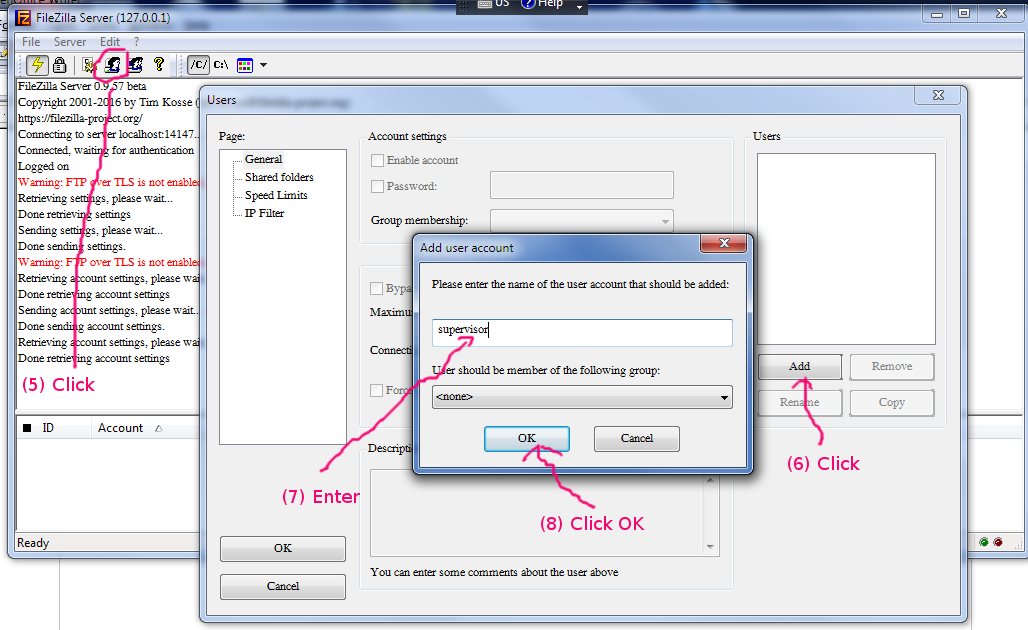

Now you'll see the user “supervisor” account created and highlighted. Then you should enter a password for the supervisor account. I've written the password in the “Description” space for supervisor just for the sake of showing it.

Then you need to create a directory to be shared. Let's first create this folder on drive D, and at D:\CSEntry\data\. Then follow step (11) and (12) on the FileZilla server as shown below:


After clicking “Add” a popup menu will appear with which you browse for the directory D:\CSEntry\data\. You will see that an “H” has been added at the side of this directory to denote home directory. Now select this newly created home directory and add permissions to Write Files, and Create Directories.


By now, we managed to create the following credentials to connect to the FileZilla FTP server. The connection is specifically meant for a supervisor to connect to the FTP server using his/her Android mobile phone.
  • Connection to the WiFi network ninjaFTP on which the FTP server resides (see the last post).
  • The supervisor account to connect to the FTP server with password = superV@007.
  • The shared folder D:\CSEntry\data\ which is designated as the home directory with additional permissions for supervisor account to write files and create directories.

Still, we need the address of the FTP server for the supervisor account to connect to. Here's how you could find that out: open the Network and Sharing Center on you desktop or laptop again. Then complete step (13) and (14).


To test if you can log in to the FTP server do the following.
First open WiFi on your Android phone. In our last post we've shown how to
create the access point “ninjaFTP” on the laptop/desktop. It should now appear on the WiFi screen and already connected. If not connected yet, connect to it.

For the next step you need to have CSEntry (available on Google Play store) installed on your Android mobile phone. Now, when you tap the CSEntry logo on your phone the Entry Applications page opens. Tap on the three dots at the upper right corner (1), and go on working with these steps:


Finally after entering the password, tap “Connect”. If the connection with the FTP server is successful, CSEntry should responded with “No files”. What? Have we gone wrong?

No!! It is OK because CSEntry was looking for a .pnc or .pff file and there was none. Recall that what we were doing was testing to see if FTP communication works. And we see that it does!


To try sending and receiving actual data over FTP we still need to do some work on the CSEntry side.

FTP Data Synchronization for Fun-I: setting up a WiFi access point


In the data collection and data management scenario mentioned in one of my previous post Myanmar-Sar in R III: Light, SQLite, after data collection, first the enumerators would have to transmit their data to their respective supervisors. Next the supervisors would transmit their data files to the Township data manager who would subsequently transmit the data to the Central database.

In the CSEntry environment which I have been playing with, there are a number of options for transmitting data. For collecting enumerators' data on the supervisor's tablet or Android phone, you could use Bluetooth or some other third party software such as Zapya, or directly with a USB cable. This is also true for data communication between a supervisor and the Township data manager. Presently for the data communication between the Townships and the Central database you could use internet connection of some sort or manually carry the data back and forth.

A neat way for data communication in the CSEntry environment is to use data synchronization scripts to transmit files between the “client” and the “server”. This method is described in a number of documents:

CSPro User's Guide, pp. 143-153,Version 6.3.2 available here.
CSPro Synchronization, available here.
Synchronization File (.PNC), available here.

Among the methods you can use with Synchronization File,
  1. Using a Dropbox account would be useful primarily for sending data from Township Data Manager to the Central database; additionally data communication problems between the supervisor and enumerator or between Township Manager and supervisors in out of the way places such as frontier areas would be effectively eliminated so long as they could get internet access.
  2. Using a FTP server hosted by a desktop or laptop at the Township Office for the purpose of collecting data from supervisors. Here supervisors would have to visit the office and work within the WiFi range. You do not need to have internet access and all you need to do is to set up a WiFi access point on the desktop or laptop. Once the access point has been created and activated you could connect your Android phone to the access point and use the services of the FTP server.
  3. Using Bluetooth synchronization for data communication between the enumerator and supervisor.

In trying them out, I have had the greatest difficulty in understanding and working with a FTP server and I have to go through a good deal of false leads before getting it done. If you'll look through the Synchronization guides listed earlier, you won't find anything on how to get started with setting up and using a FTP server. That's surely the penalty you've to live with when you don't have good internet access or smart phones and land lines could have cost you 2M Kyats or more not too long ago! It would have been a piece of cake for people out there, I guess. For us dummies, we are back to square one. Such basics were sickbases for us. Anyway I managed to do it, finally.

To set up an access point on your Windows desktop or laptop, begin with the three steps shown below. There I had been too lazy and combined into a single screen shot for what should have been three separate ones.


Now a bit of clarification. To be able to do (3) you'll have to right click on “cmd.exe” at the top to open the popup menu and then you may have to supply an administrator password. After that the command line will be opened.

At the command prompt you'll have to enter this command in full: for XXX you enter your access point name, and for YYY you enter your key (password) for it.

netsh wlan set hostednetwork mode=allow “ssid=XXX” “key=YYY” keyUsage=persistent

Let's say you use the following:

netsh wlan set hostednetwork mode=allow “ssid=ninjaFTP” “key=123NINJAftp” keyUsage=persistent

After creating the access point you can start it at command prompt with

netsh wlan start hostednetwork


and stop it when you want to:

netsh wlan stop hostednetwork

After activating, we should test to see if the access point works. First let's look at the connections in the network. This is what you see before you've activated the hostednetwork.


After you've run netsh wlan start hostednetwork:


To connect to this access point, you have to turn on WiFi on your Android phone. Now when you see ninjaFTP and tap on it (1), enter password (2) and then tap connect, and voilà you are connected (3):


Now look again at the network connections on your desktop/laptop:


And you see that your access point works fine.

Friday, August 5, 2016

Myarmar-Sar in R IV: RStudio to the Rescue


Now I run a fragment of the same script I used for my last three posts on Myanmar-Sar in R on my workhorse laptop which doesn't have MyMyanmar Language System installed. Now I run the script on Rstudio and presto!:


And you see that Myanmar-Sar is displayed correctly on the console!

It was not my own brainwave that took me to the right place and sure I know you won't expect me to. It was Yin Zhu's post “Unicode Tips in Python 2 and R” of July 9, 2013 on R-bloggers which I've read some minutes earlier that shows me the key:

Use a Unicode terminal and a Unicode text editor when working with Python and R. For example, RStudio is, while Rgui.exe isn’t. PyDev plugin/PyScripter is, while the default IDLE isn’t.

Case close, at least for dinari.

Immediately after reading Yin Zhu, I installed RStudio. Before, I was just using R's own Rgui and it was fine. Anyway, apart from dinari's problem, another practical need prompted me to try RStudio. It was the need to use Myanmar-Sar (or other non-English characters) as part of the code.

Here let me demonstrate the difficulty and usefulness of the solution involved with a toy example. Let's say a robot from some place in the universe has been recording and sending home the information on living things it “sees” on earth (don't go away; I've translated the data into English for your convenience). Please don't be offended by this extra-terrestrial being's use of Myanmar language. His “dog” category for classifying living things would have meant “others”. I suspect he/she has a Bamar lineage probably from Weitzers and Zawgyis of the ancient past and his/her Myanmar language has gotten rusty.

Now I run this in RStudio:


Note that in the screenshot above we can see Myanmar-Sar correctly for a line in “x” using the cat( ) function. But can't see it in Myanmar-Sar when run in Rgui console as we see in the screenshot below.


But when we write the csv file, both give correct results.


Importantly, this exercise supports our view that not being able to see Myanmar-Sar on the standard R console doesn't diminish R's usefulness for reading, manipulating, and writing Myanmar-Sar in R. However ease of coding involving Myanmar-Sar could be much improved if we use RStudio.

Get a taste of it yourself by trying to write the fifth line of code from the above script shown below by using the standard Rgui console:


Summing up, what I've tried out so far barely scratched the surface of R. Yet I am confident that we could use the power of R in data analysis involving Myanmar-Sar or, I guess, other non-English language as well by using RStudio console together with appropriate R packages. Doing so we have seen that we could use standard Unicode fonts to get our job done without the need for some other fancy or risky software.

Wednesday, August 3, 2016

Myanmar-Sar in R III: Light, SQLite


There was this large scale data collection and data management scenario for an important nation-wide event. The kind of data to be collected is deceptively simple but the catch is that the sheer size of the operation makes it a formidable undertaking. When the results were in, the scores were found to be not that enviable. Judging from what meager information available on the official websites, those from interested local NGOs, international contractors and NGOs with stakes in this undertaking, my dumb guess is that the responsible parties and the public seemed to have been caught unawares. Well, enough of my obscure remarks. Let's get down to work.

The plan was to have the central database maintained by PostGresSQL with SQLite databases at Township level serving as data collection points and exchanging data with the central system through offline and online data transfers. It was specified that Myanmar-3 font, the standard font for Myanmar Government agencies, will be used for both user interface and database storage. In this context, the idea basically, I guess, is to encode the data transmitted in Myanmar-Sar as well as in other forms in UTF-8 system.

Well, that's quite some interesting topic for small guys to play with, as usual, for fun (and and may be of some use). One possible solution in this context, I guess, is to collect data in the field using a CSEntry application on Android phones and upload the text data files at township data collection point(s) to an SQLite database via R. Then the stored data could be uploaded to PostGresSQL database online or offline. Continuing my explorations with Myanmar-Sar in R, the modest objective of the exercise for this post will be to try to create a simple SQLite database via R and see how it handles Myanmar-Sar.

For this exercise, you need to have RSQLite package installed on your machine and we will still be using the State/Region Pcode data of MINU we have used for the last two posts as the source data. The R script is self-explanatory:


What is remarkable here is that when you upload data with Myanmar-Sar to SQLite database from R, and retrieve it back, and then write the result to a text file, you do not lose the Myanmar-Sar as we can see below:


However, if you were to write the data read into R as SR_MIMU dataframe and try to write it directly into text file:

                 write.csv(SR_MIMU, file = “SR_MIMU_direct.csv”, row.names = FALSE)

you'll get this instead.


To get a text file with correct Myanmar-Sar, you'll need to use writeLines() in the correct way in this situation. We have shown that in our earlier post.


Myanmar-Sar in R – II: Displaying on the Console


This post arises as an afterthought to my explorations relating to dinari's question which was the subject of my last post. The solution in that post was about reading in and writing out UTF-8 coded Myanmar-Sar with R. Before I stumbled upon dinari's question, I came to realize that reading in and writing out Myanmarsar correctly in R was not for the fainthearted, just by looking at a post like “R on Windows: character encoding hell”, for example. It was by sheer luck that I could find relatively fast the solution given in my last post. However, I had dismissed the task of displaying Myanmar-Sar on console as too hard. That would be desirable, but not that important so long as we could import Myanmar-Sar correctly into R, process it and export it correctly out to a text file. Just now I've seen my kind of idea expressed in an answer to “Cannot read unicode .csv into R” on Stack Overflow.


By the time that I've read that post by puslet88 I have already worked out how to correctly display Myanmar-Sar on R console. First let's revisit dinari. In the beginning we have to understand that we were able to see the Myanmar-Sar in the text file we had written out only because we have installed Myanmar3 font (or for that matter, any Unicode compliant font such as Tharlon, ThanLwin, or Padauk, … ) on our machine. In my own experience, I was able to use Myanmar3 font on CSPro software for developing data entry application on Android phones. So I looked around for a font that could be applied everywhere in Windows and found the MyMyanmar Language System.

In my last post, displaying Myanmar-Sar on the R console has reached as far as:


Then, after installing Padauk font we get the kind of half Myanmar-Sar half Unicode codepoint that danari had complained. We need to use the cat( ) function:


The Myanmar-Sar outputs looked as if some wrong font has been used! I tried tweaking the Windows registry like modifying MS Shell Dlg and MS Shell Dlg2 both to Padauk in …\FontSubstitutes. That didn't improve the R console display, but in filenames in Windows Explorer where small squares only were visible before, I could now read in Myanmarsar.


Looks like the names of first two files were written in Zawgyi. However, in this context I have to caution you to make a registry restore file before you try to modify the Windows registry.

Now that I've installed Myanmar Language System, I run the part of the script shown in my last screen shot above, and voilà!


So the solution for dinari's problem is to have a Myanmar-Sar font installed that could display system-wide and to correctly use the subscripts for list: [[1]][1], converting the results to character, and use the cat( ) function. According to him his problem was in Mac environment which I've no knowledge. But I guess the R syntax won't be that different from the Windows environment for R.

After I had installed MyMyanmar and successfully ran the above code I discovered this post (too late?) from CNET, http://download.cnet.com/MyMyanmar-Unicode-System/3000-2094_4-10578829.html:


The downside of MyMyanmar is that when I became worried about using the MyMyanmar Language System and uninstalled it, I was left with Windows popups that have barely readable texts!

Then no amount of my safe tweaking with Window's “Personalize” or the registry could bring that back to normal. I was about to reinstall Windows, but then I tried installing ThanLwin and Padauk fonts from SIL. Miraculously, the problem disappeared! I don't know which one of them delivered me, but it was fine.

Well, I won't blame the MyMyanmar people for that. We all need encouragement. We all are on the same boat and we need to go far. But they would do well warning us about this side effect and give us the remedy. Their uninstall should have handled this problem.

To play safe, I installed MyMyanmar on another laptop to run the last code fragment I've shown just for writing this post. For my work, and presently, I am just happy with the ability of R to import, process and export UTF-8 data (including Myanmar-Sar) independently of how they are displayed on the console.


Saturday, July 30, 2016

Myanmar-Sar in R - I


Having attempted a mobile-phone data collection application for parallel vote tabulation (Yan Can Cook or More fun with PVT) I was hugely frustrated with the problem of displaying Myanmar characters (Myanglish PVT) on Android mobile phones. So I ranted “As mentioned in my last post Myanglish PVT, I was frustrated, so much frustrated in failing to get a respectable version of PVT data collection application in Myanmar language.” and posted “PVT tawla or lost in font jungle”. Luckily a few months back I received a Nexus-6 by Motorola from my son and I was overjoyed to find it displaying the Myanmar-Sar in my PVT application perfectly. For Myanmar-Sar input I installed the Bagan Keyboard and Myanmar Keyboard by Abbott Cullen and they both worked well.

In an application like PVT, Myanmar-Sar is needed only for assisting the interviewer in the form of question wordings, instruction to the interviewer, and showing the response categories to choose from. In the data file they will be represented by codes (in English) and the only textual data entered in Myanmar-Sar would be the name of the candidate. This is the way most survey data files would be organized, that is, most of the entries would be in precoded categories. However, in certain situations like data collection for civil registry, or for recording birds and animal sightings we may need to enter a lot of data as text in Myanmar-Sar.

How could we work with Myanmar-Sar in situations like the latter, specifically in R? Searching for the answer in Stackoverflow, which I guess is the most likely place, I found out that it wasn't as easy as I first thought. After working through a number of questions and answers on handling non-English characters like Chinese or Russian, I stumbled upon a workable approach and it will be the theme of this post. But first let's look at question 17934847 asked two years ago by dnari which still needs an answer:


It relates specifically to the Mac environment, we were told, but we could still try imitating it in Windows. Since no link was provided for the data “data.csv” I will be using Myanmar Information Management Unit (MIMU) place codes for States/Regions of Myanmar available here. The unzipped file is an Excel file with .xlsx extension. I opened the file in Open Office's Calc spreadsheet and saved its “State_Region” sheet as comma separated values text file “State_Region.csv” in UTF-8 encoding. Opened with notepad, Myanmar-Sa came out of it perfectly:


In the following R script I tried to replicate what dinari has done.


In dinari's question post, cases[[1]] is shown to produce Myanmar-Sar output:


Actually, it is totally different from what is produced in my test of his codes. Also I couldn't find in his code fragment any command that could have produced his text output. I guess dinari would have directed the output to a text file. After all, dinari himself remarked “[the rest is a text file …”. Even then cases[[1]] couldn't produce the text of the corpus as we have seen from running my script. Then you need to type cases[[1]][1] to get it. Also, to write out a text file from a corpus, we need to convert it first into characters as shown in my R script.

Furthermore, cases contains 20 corpora and to write all of them to a text file, we need to convert the corpora to a dataframe. Thanks to Ken Benoit's answer for the stackoverflow question “33193152/unable-to-convert-a-corpus-to-data-frame-in-r” it could be done like this:


Opening the written “caseAll2csv.csv” file with notepad:


Credit: I found the correct way to write unicode Myanmar-Sar to text file from petermeissner's answer to stackoverflow question 10675360/utf-8-file-output-in-r.

Tuesday, June 28, 2016

Suu steam-rolling III: aRxiv for arXiv


I had known a bright young nuclear scientist trained locally who went abroad a long time ago to learn about handling nuclear waste. Coming from a rural family of farmers, he told me that he had quite some trouble using a tea-bag properly for his first breakfast at the hotel. Then I recalled myself watching a gentleman from Sri-Lanka making tea over a conversation. It was some five or six years earlier when I was in the Pacific. There I learned that the secret of good tea is to add one more spoon of creamer—for the cup—to the two spoonfuls I had added for myself! Yet, despite some time I spent outside of Myanmar I wouldn't be able to set the table myself because I don't know the proper places for knives, forks, or spoons and I'm surely ignorant of which brand of tea should go with which occasion. It's my karma and in no way could I have attended a classy high school or have a proper upbringing, if you like. But I won't regret.

For that matter, I never owned a car, or learned to drive one. I'm just happy that I learned to use computers and smart phones a bit. I am happy that I could share things with ordinary folks and that matters.

Then there is one website I would like to share. I've heard that it could replace some technical journals which you won't get free. Welcome open access. Welcome arXiv.


According to ProgrammableWeb -

The Cornell University e-print arXiv, hosted at arXiv.org, is a document submission and retrieval system used by the physics, mathematics and computer science communities. It has become the primary means of communicating manuscripts on current and ongoing research. The arXiv repository is available worldwide. Manuscripts are often submitted to the arXiv before they are published by more traditional means. In some cases they may never be submitted or published elsewhere. The purpose of the arXiv API is to allow programmatic access to the arXiv's e-print content and metadata.

The aRxiv is an R interface to the arXiv API and the arXiv API does not require an API key. You can install aRxiv from any of the cran mirrors.

Below is my R script for finding papers on machine learning published on arXiv from the beginning of 2010, and viewing abstracts on the arXiv website. Once on the abstract page you could download the full paper by using the link provided. On the other hand you could save the search results for the arXiv papers to a text file. Then you could conveniently view them with a spreadsheet.


When you run the script, you will see your commands and outputs, and error messages, if any, displayed one after another on the R console. I assume you know how to save them to a text file for reference. Near the end of the script you'll see the arxiv_open() function. That will open the abstract page shown below and here you can see that you could download the pdf file of the full paper:


After the run, you should also find the ML_aRxSrch.csv file you've saved in your working directory. Part of it is shown below opened with the Open Office Calc spreadsheet. Some rows were hidden for convenience in displaying:


My purpose here and in some earlier posts is to introduce (to myself as well as others) some tools that could take advantage of the web APIs provided by publishers, Q/A sites, social media, and others. For simplicity I've been leaving the contents of their results untouched. However, I couldn't help feeling inspired by an instance of the struggle for ever greater understanding of older vs. newer ideas as I read this abstract:

Neuroimaging research has predominantly drawn conclusions based on classical statistics, including null-hypothesis testing, t-tests, and ANOVA. Throughout recent years, statistical learning methods enjoy increasing popularity, including cross-validation, pattern classification, and sparsity-inducing regression. These two methodological families used for neuroimaging data analysis can be viewed as two extremes of a continuum. Yet, they originated from different historical contexts, build on different theories, rest on different assumptions, evaluate different outcome metrics, and permit different conclusions. This paper portrays commonalities and differences between classical statistics and statistical learning with their relation to neuroimaging research. The conceptual implications are illustrated in three common analysis scenarios. It is thus tried to resolve possible confusion between classical hypothesis testing and data-guided model estimation by discussing their ramifications for the neuroimaging access to neurobiology.

Despite my complete lack of idea on neuroimaging or neurobiology I sensed the promise that such improvements in knowledge would benefit our well-being somehow—collectively or individually. On the side, my feeling is that reading such abstracts could be something more than an idle recreation for the non-specialist. The bottom-line is that it may broaden our knowledge base or simply leave us with an appreciation of good things done (provided of course, that we could make any sense out of a given abstract).


Back to the basics: to play around with aRxiv package, a good start will be to read the vignette “aRxiv tutorial” in the help pages of “Html help” accessible from your R console. You could also download this tutorial here.